.png)
How to Add an Ad Account to Your Meta Business Portfolio
To add a Facebook/Instagram ad account to your business portfolio in Meta Business Suite, you have three options depending on your situation.
📋 You can either create a new ad account, claim an existing ad account, or request access to an ad account.
They’ll all start with the same few steps. To get started:
Step 1. Log in to Meta Business Suite here https://business.facebook.com
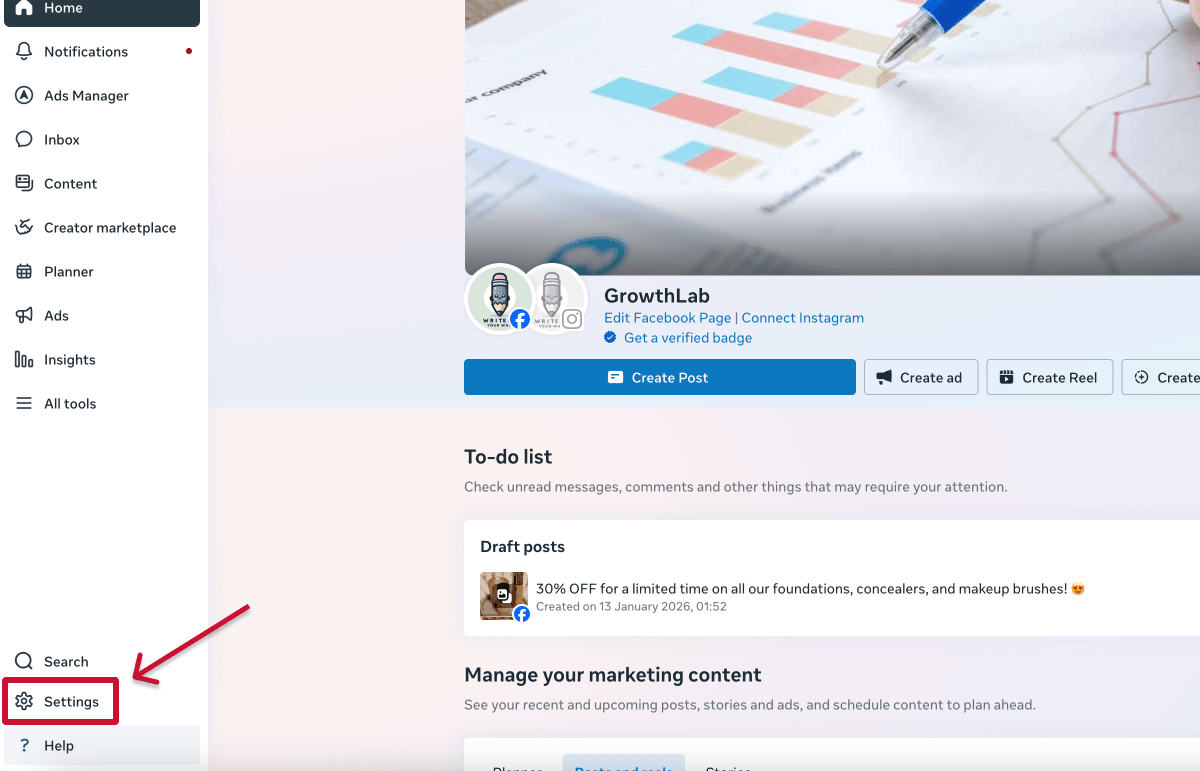
Step 2. Go to “Settings.”
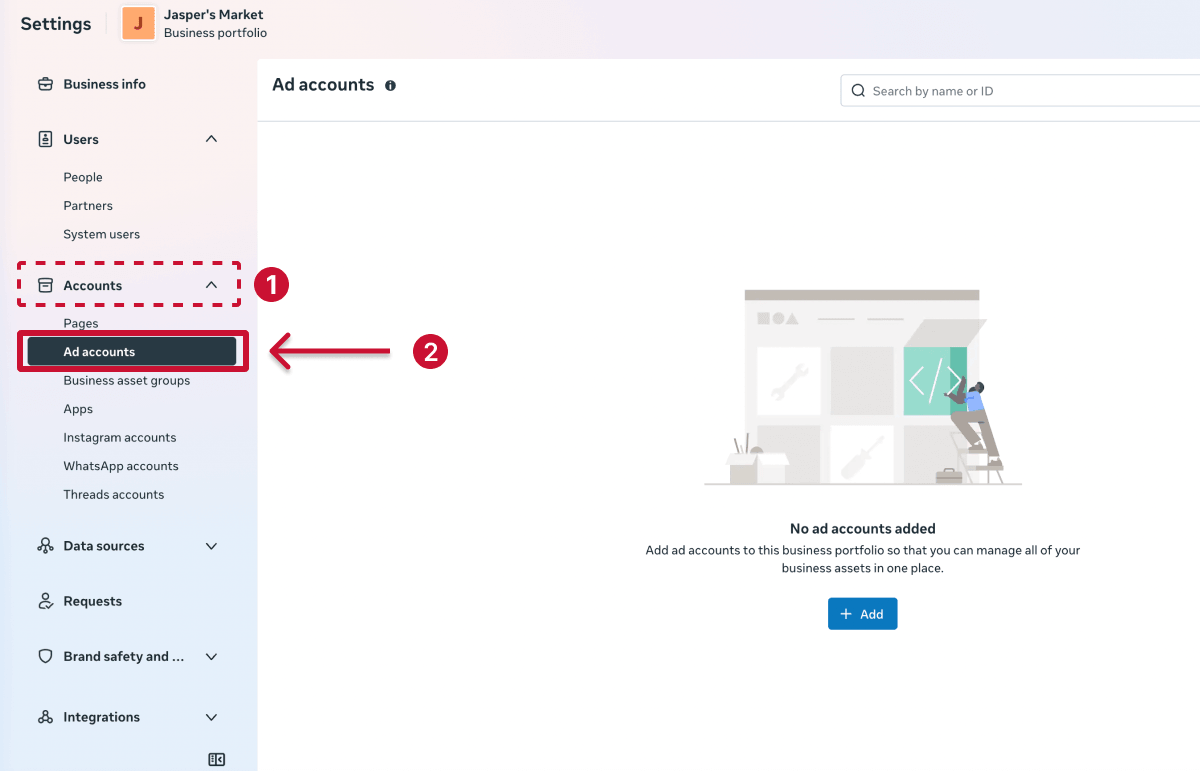
Step 3. Click Accounts > Ad accounts.
Now, depending on the option you want, the next three sections explain the different ways you can add an ad account to the business portfolio.
Option 1: Create a new ad account
Use this method if you don’t have an ad account yet.
Note: New business portfolios can create 1 ad account initially (this increases to 3 after you start running ads and make a payment).
Start with steps 1 to 3 above, then:
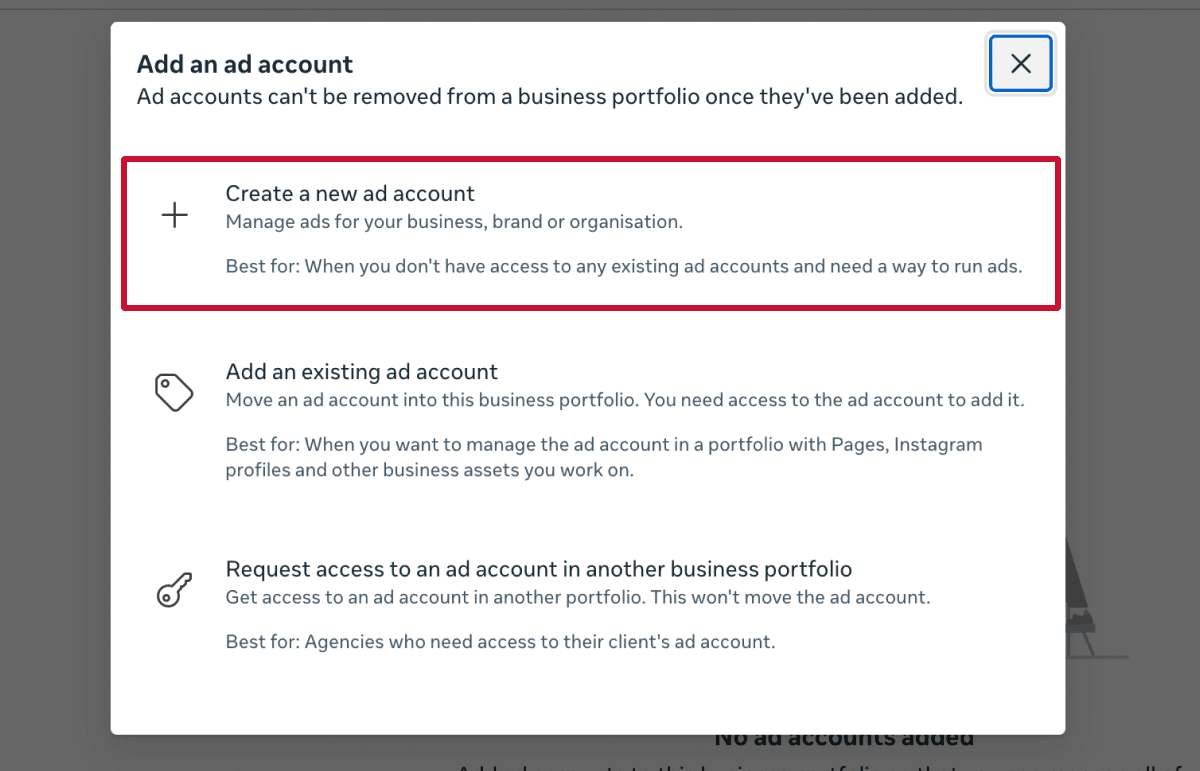
Step 4. Click Add > Create a new ad account.
Step 5. Enter your new ad account details, such as name and timezone.
Step 6. Choose who will use it:
- My business (select this if you’ll use the ad account for your own business)
- Another business or client (select this if you’re running ads on behalf of a partner or client)
Step 7. Review and accept Meta’s terms, then click “Create ad account.”
Once created, the ad account can’t be removed or transferred to another business portfolio.
Option 2: Claim an existing ad account
Use this if you already own the ad account and want to bring it into your portfolio. Start with steps 1 to 3 above, then:
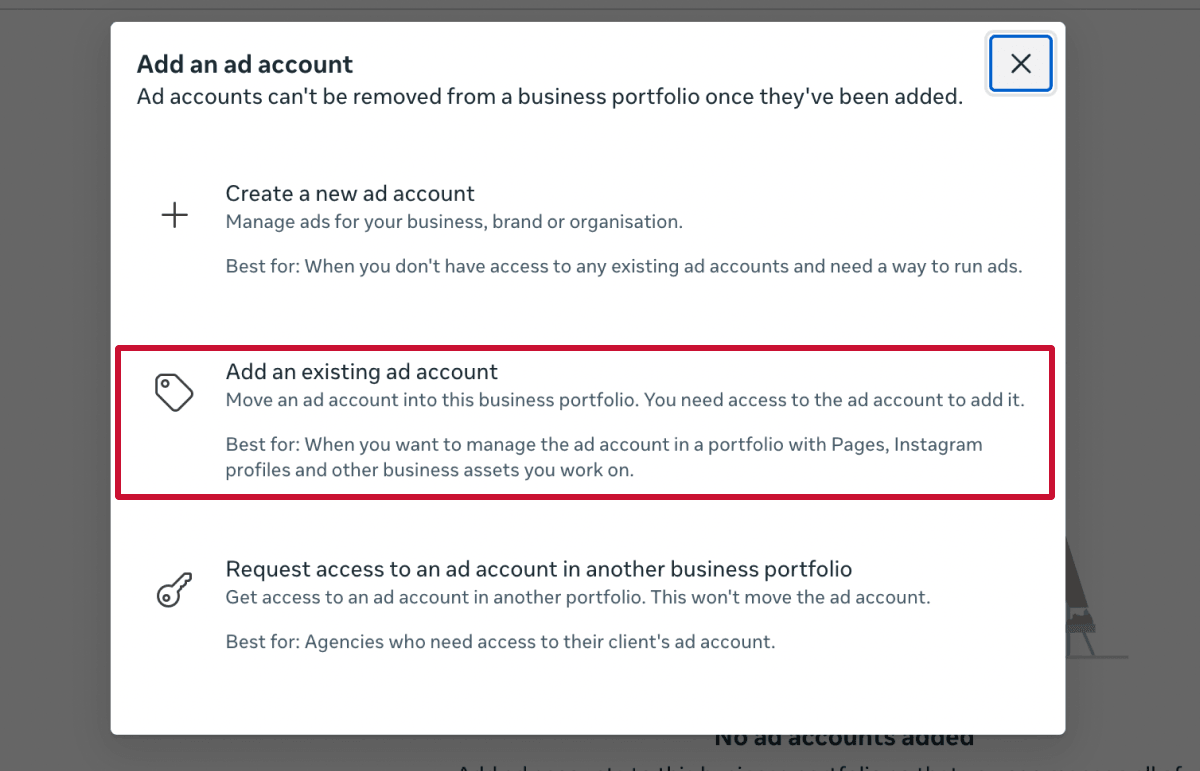
Step 4. Click Add > Add an existing ad account.
Step 5. Enter the Ad account ID. You can find this in your URL in Ads Manager or from the account dropdown at the top of your dashboard. Learn how to find your Facebook (Meta) Ad Account ID here.
Step 6. Review and accept Meta’s terms, then click “Claim ad account.”
Once claimed, the ad account can’t be removed or transferred to another business portfolio.
Option 3: Request access to an ad account
Use this if you're working with a client or another business. Start with steps 1 to 3 above, then:
Step 4. Click Add > Request access to an ad account in another business portfolio.
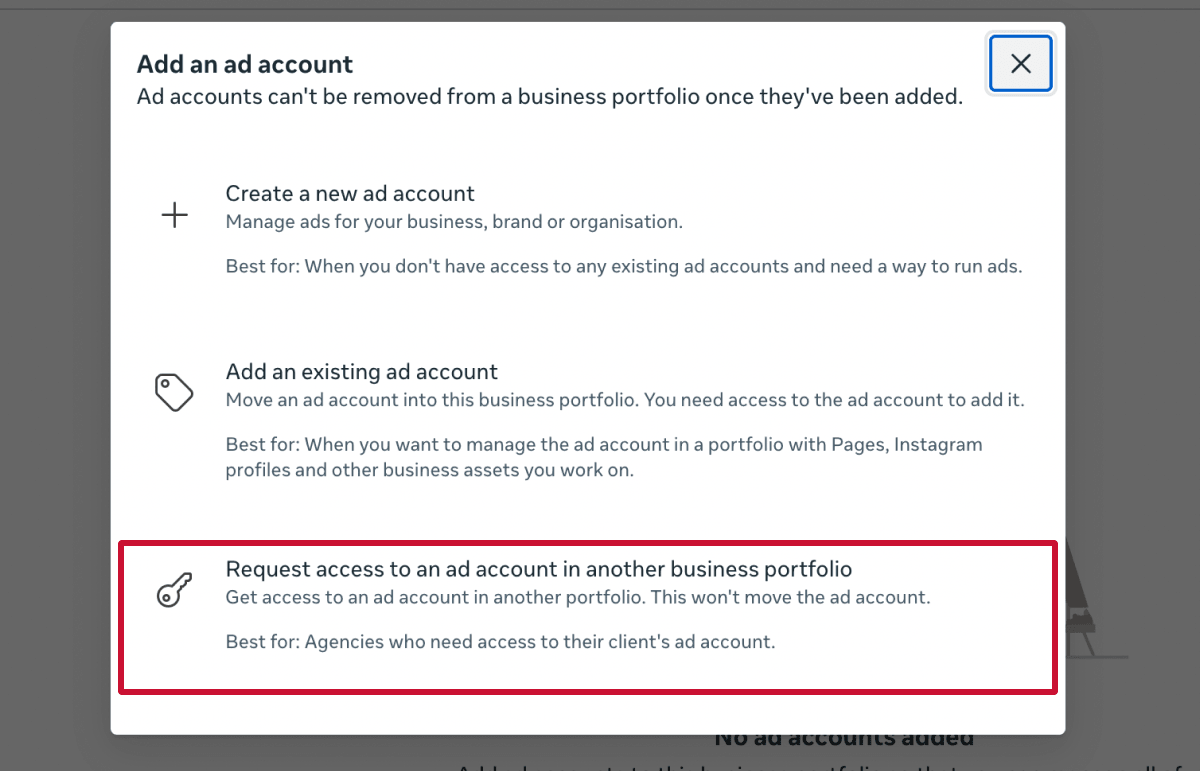
Step 5. Enter the Ad account ID.
Step 6. Choose your access level:
- Partial access (select specific tasks)
- Full control (manage the entire ad account)
Step 7. Click “Confirm.”
The ad account will remain owned by the original business, and access can be removed at any time.
What if I don’t have the client’s ad account ID?
If you don’t have the Meta Ads account ID, you can ask the account owner to grant you access instead.
Here’s how:
- Contact the ad account owner.
- Ask them to go to Settings > Ad accounts > Assign partner in Meta Business Suite.
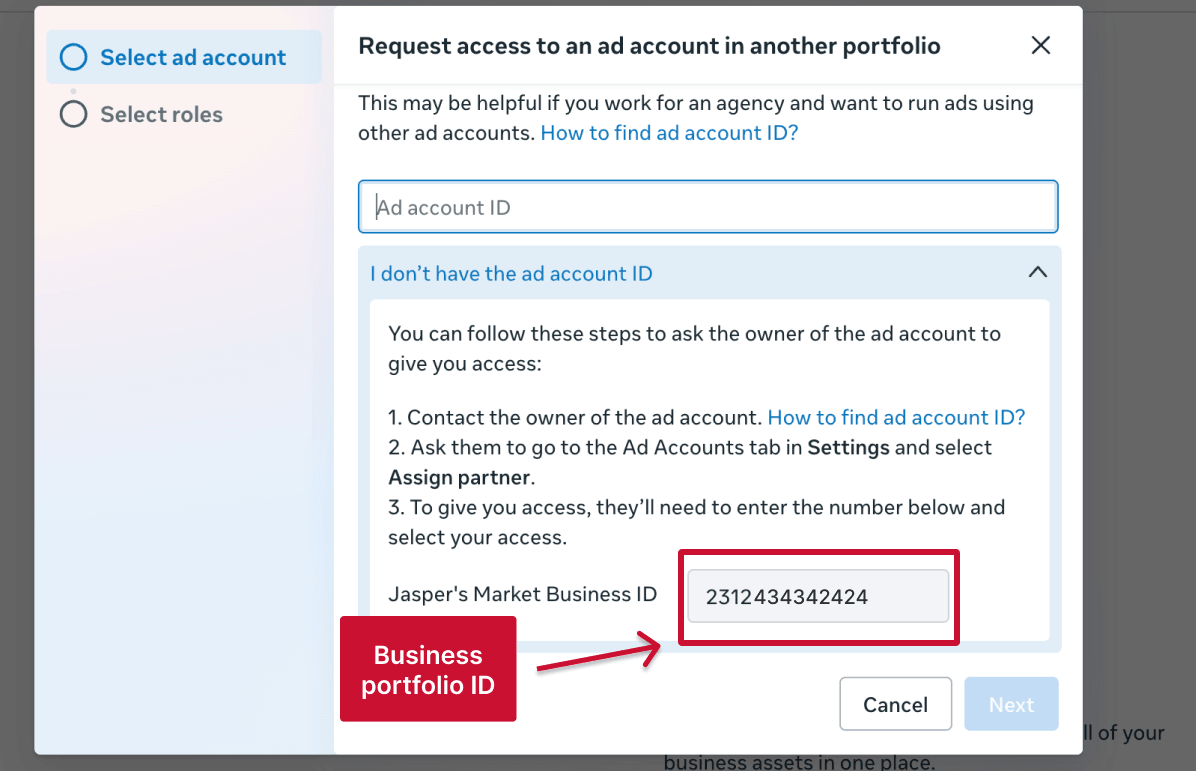
- Ask them to enter your business portfolio ID and choose the level of access to grant.
💡 Tip: You can find your business portfolio ID under Settings > Business portfolio info.
You may also see an “I don’t have the ad account ID” option when requesting access. Clicking it shows these steps and your business portfolio ID.
Related articles
🔗 How to find your Meta Ads Account ID
🔗 How to find your Meta Business ID
🔗 How to allowlist (whitelist) influencers for Meta ads