.png)
How to Find Your Microsoft Advertising Account Numbers (Manager & Account number)
If you’re linking accounts in Microsoft Advertising, you’ll need either a manager account number or an account number, depending on the level of access required.
- Manager account number: Used to link to a manager account (multiple ad accounts)
- Ad account number: Used to link to individual ad accounts
Find your Microsoft Ads manager account number
The manager account number is a 10-character ID made up of a mix of numbers (0–9) and letters (a–z, A–Z).
This number represents a manager account, which acts as a central account for managing multiple Microsoft Advertising accounts.
What you need to know:
- Manager accounts don’t run ads themselves, but are rather used to manage other accounts
- Linking using a manager account number gives access to all accounts under that manager
- Commonly used by agencies managing multiple clients
You have two options to find it:
Option 1: From the manager account settings
Step 1. Go to your Microsoft Advertising dashboard here https://ads.microsoft.com
Step 2. In the left-hand menu, select Settings > Manager account settings.
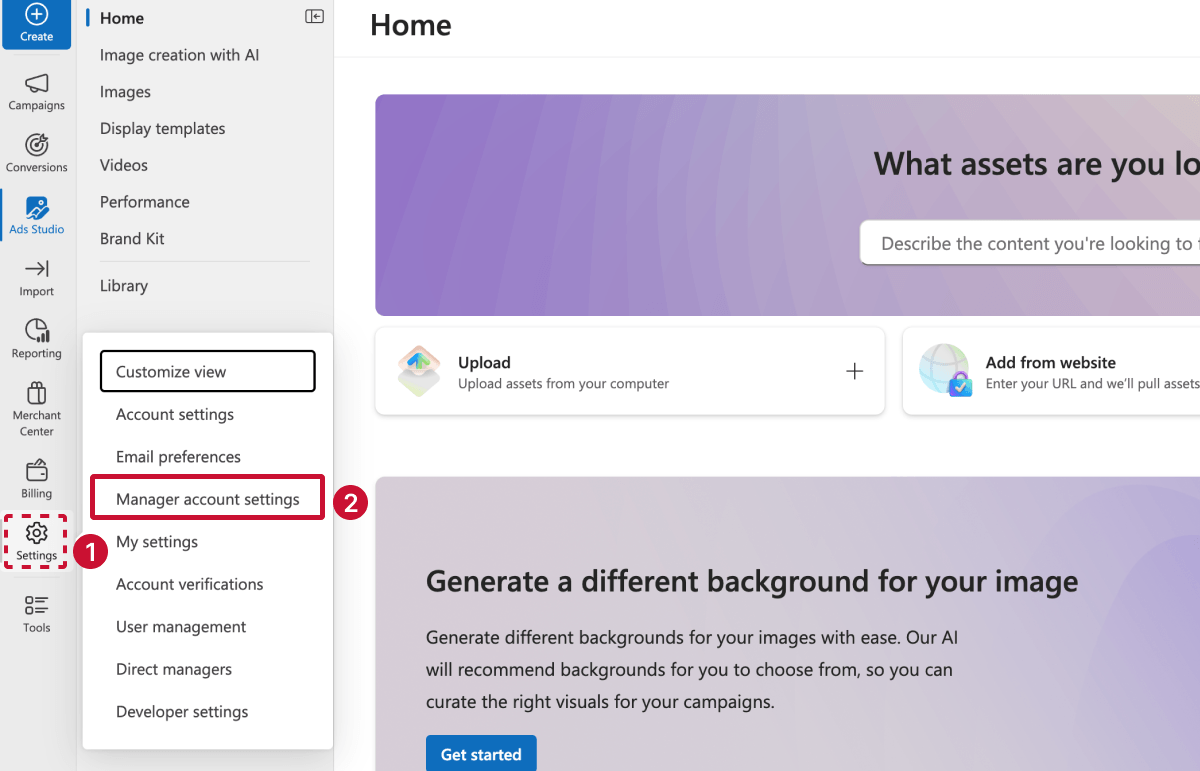
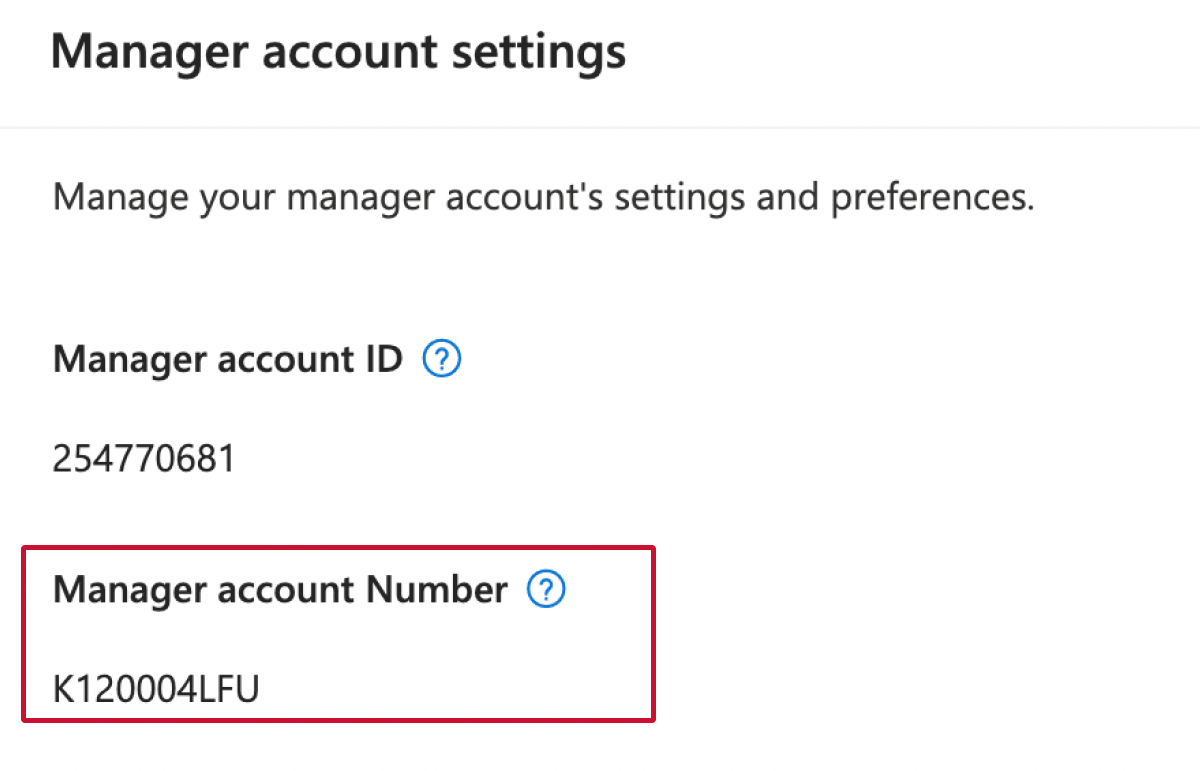
Step 3. Your 10-character manager account number is displayed under Manager account number.
⚠️ Important note
Your manager account number is different from your Manager account ID.
- The Manager account number is used for linking accounts and granting access
- The Manager account ID is used by Microsoft Advertising Support to identify your account
Make sure you’re sharing the manager account number when linking accounts.
Option 2: From the account dropdown
Step 1. Go to your Microsoft Advertising dashboard here https://ads.microsoft.com
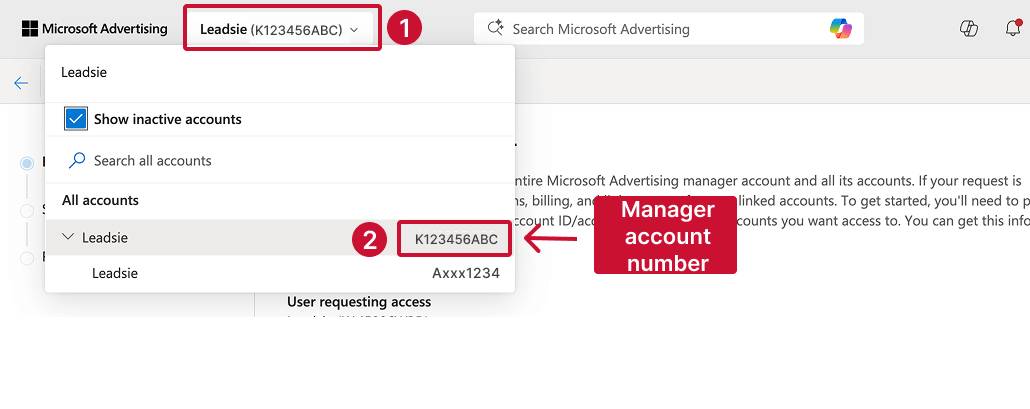
Step 2. In the upper-left corner, select your manager account to open the dropdown menu.
Step 3. Your manager account number is displayed alongside the manager account name.
Find Your Microsoft Ads Account Number
The ad account number is an 8-character ID made up of a mix of numbers (0–9) and letters (a–z, A–Z).
This ID represents an individual Microsoft Advertising account, where campaigns, ads, and billing are managed.
What you need to know:
- Each account has its own unique account number
- Linking using an account number gives access to one specific account
- You can have multiple account numbers under a single manager account
You have two options to find it:
Option 1: From the account dropdown
Step 1. Go to your Microsoft Advertising dashboard here https://ads.microsoft.com
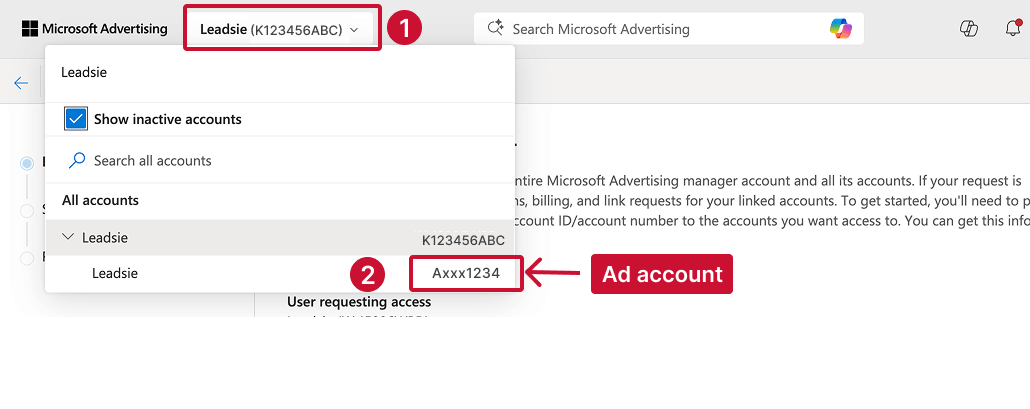
Step 2. In the upper-left corner, select your manager account to open the dropdown menu.
Step 3. View all account names and their corresponding account numbers.
Option 2: From all accounts
Step 1. Go to your Microsoft Advertising dashboard here https://ads.microsoft.com
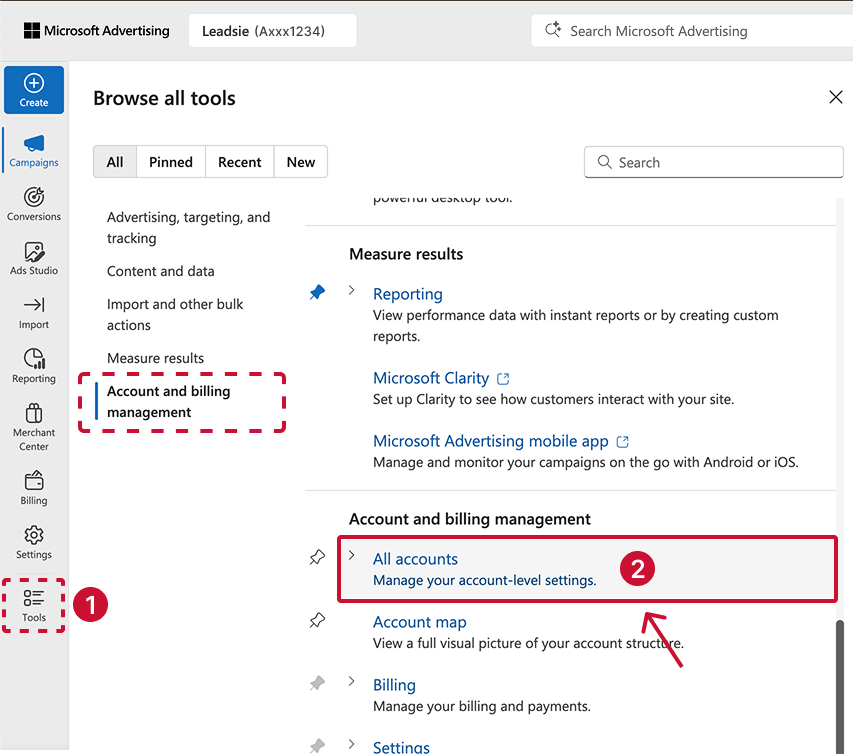
Step 2. In the left-hand menu, go to Tools > All accounts.
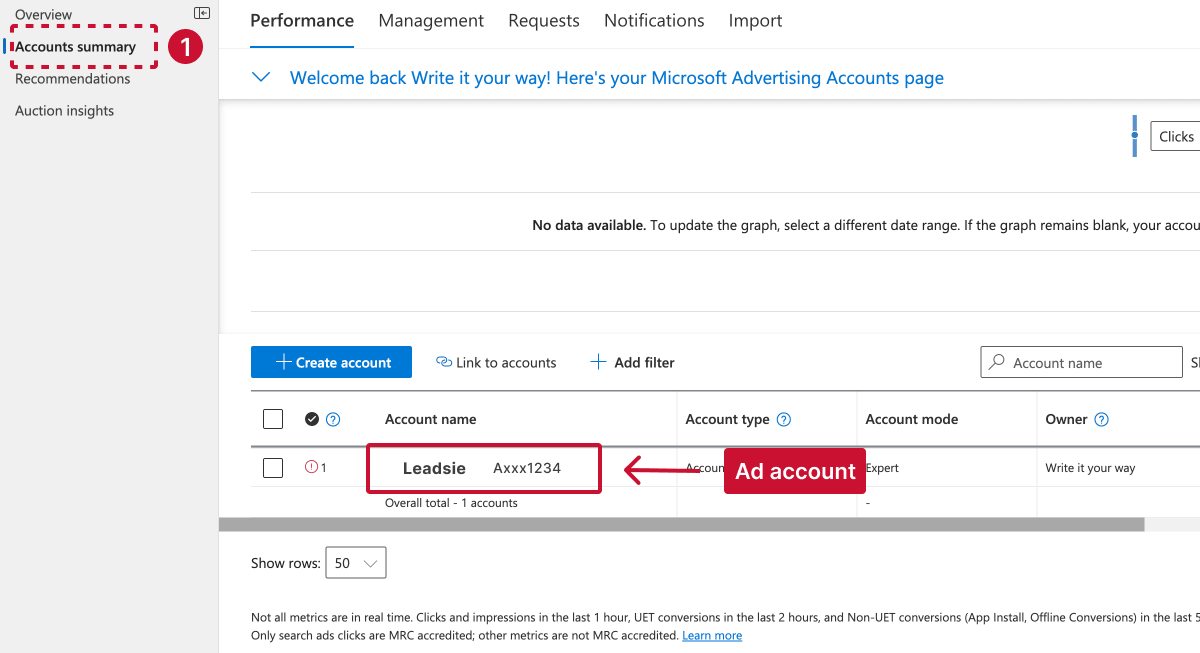
Step 3. Select the Accounts summary tab.
Step 4. The account number appears next to the account name.
Related articles: