.png)
How to connect Leadsie with Zapier: advanced options
For simple Zaps that trigger an alert whenever you receive a new connection via Leadsie, see How to connect Leadsie with Zapier.
More sophisticated Zaps are also supported, and this article explores some of the options: Looping by Zapier and custom scripts.
Why would I want to use Looping by Zapier?
You can use the Looping by Zapier step to:
- Send connection alerts to different recipients depending on the asset types granted
- Handle other workflows that require one action per connected asset instead of per connection.
Why would I want to use custom scripts?
You can use custom scripts to:
- Implement sophisticated rules for how to add data about the granted assets to your CRM
- Connect to more complex workflows per asset.
Set Up Looping by Zapier
With Leadsie as the Zap trigger, it's easy to fire a message or email with the client name and summary URL, and a pre-formatted summary of the assets granted (Connection Summary Text/Html - make sure you are using v2).
If you want to display the assets differently, or perhaps send one message per asset or insert them all into a Google Sheets document, then the Looping step will allow you to do that.
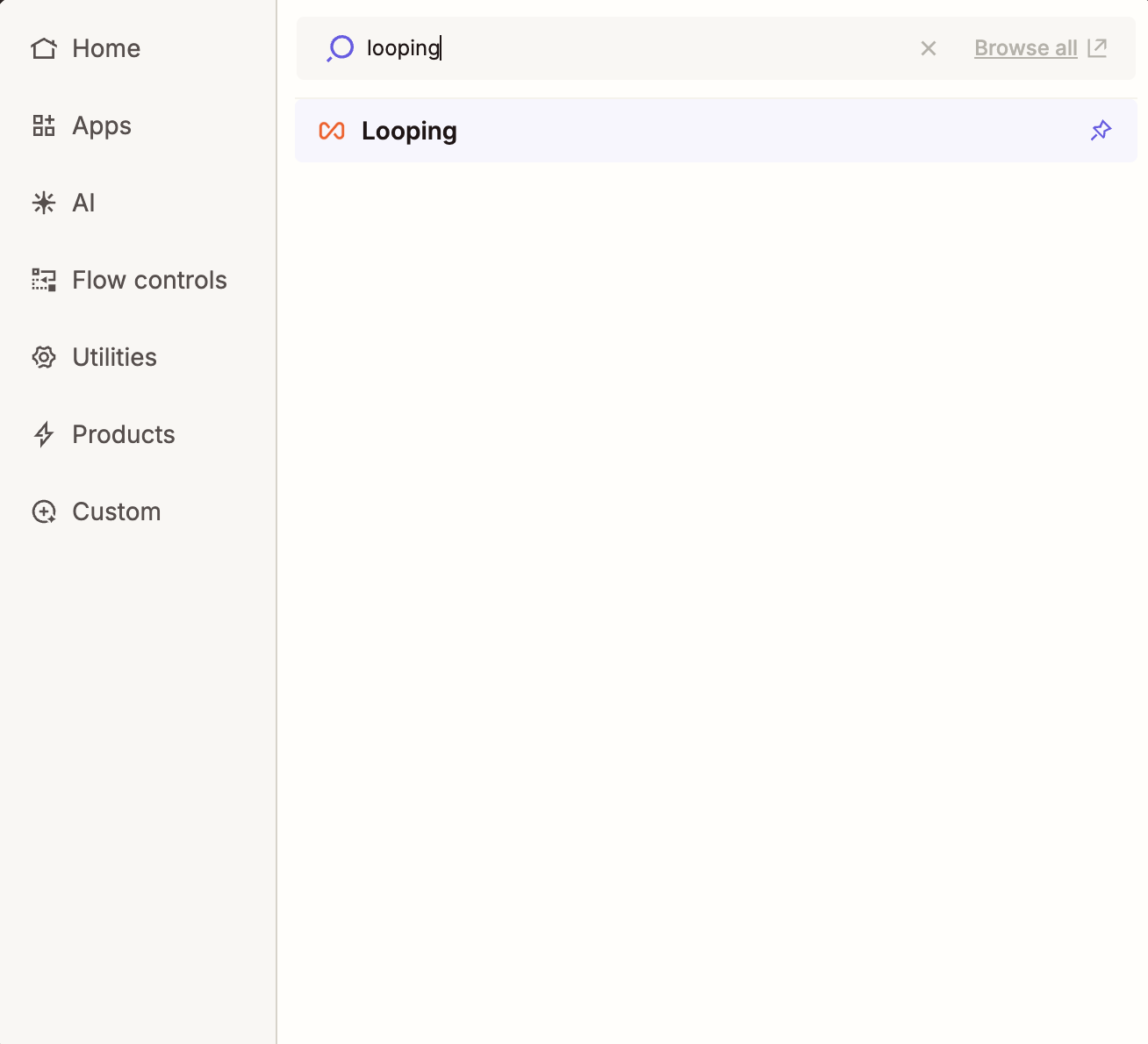
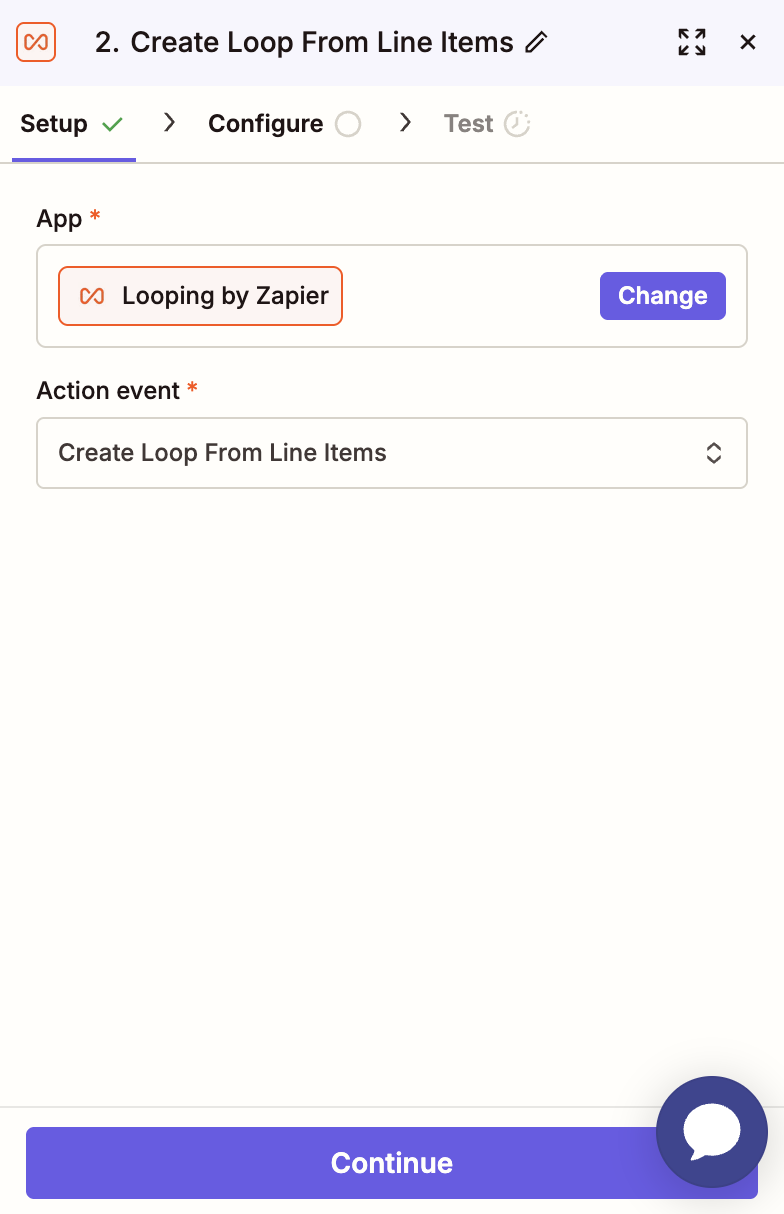
You can add it in as an intermediate step in your Zap:
Without looping, the trigger returns asset information for the connection in separate variables as single comma-separated lists. For example, a connection granting access to a Meta Ad Account, Facebook Page and Instagram Account would return:
- Connection Assets Name:
Test Ad Account, Test Page, Test Instagram Account - Connection Assets Type:
Ad Account, Page, Instagram Account - Connection Assets Connection Status:
Connected, Connected, Connected
Looping splits these lists and processes each asset individually, so each variable returns a single value rather than the full string.
With looping, you can return each asset with its full data like so:
- Asset Name: Test Ad Account
- Asset ID: XXXXXXX
- Asset Type: Meta Ad Account
- Asset Connection Time: DATETIME
- Asset Connection Status: Connected
The next step will be called once for each asset.
To configure the loop, just select the variable or variables you want to loop through and name them. See the screenshot below for an example. Leave the delimiter as a comma (the default).
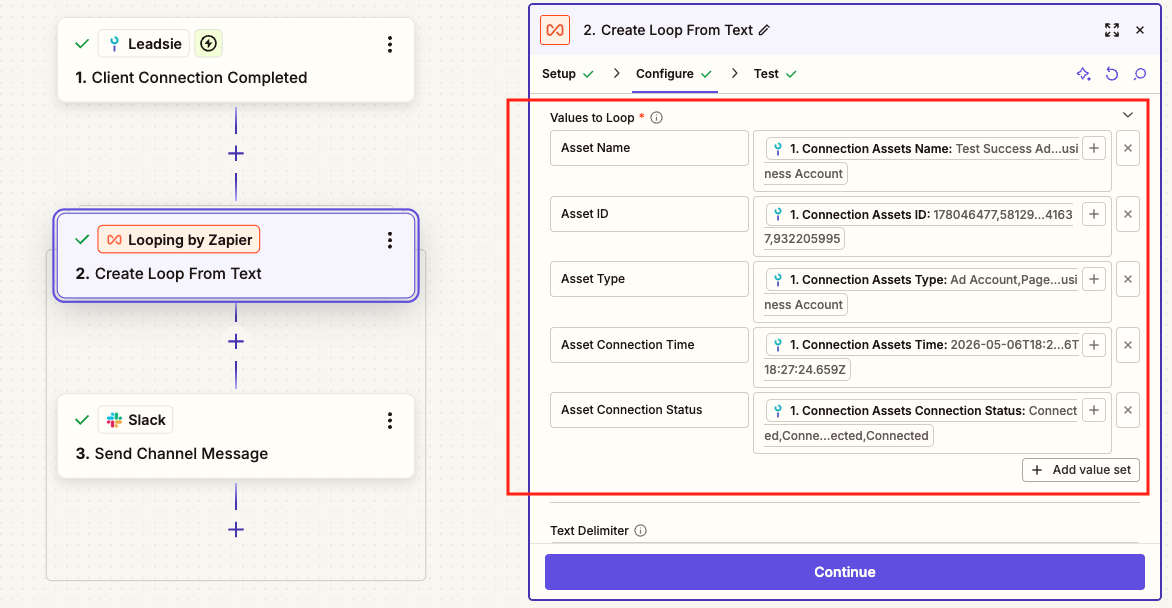
Note when you test this step, Zapier will only preview the first item in the loop. You will need to publish the Zap and trigger a live connection to see the loop working fully.
The steps following Looping will now be executed once per asset on the connection.
Using a script
Zapier also lets you use custom scripts to transform the data, using their Code step.
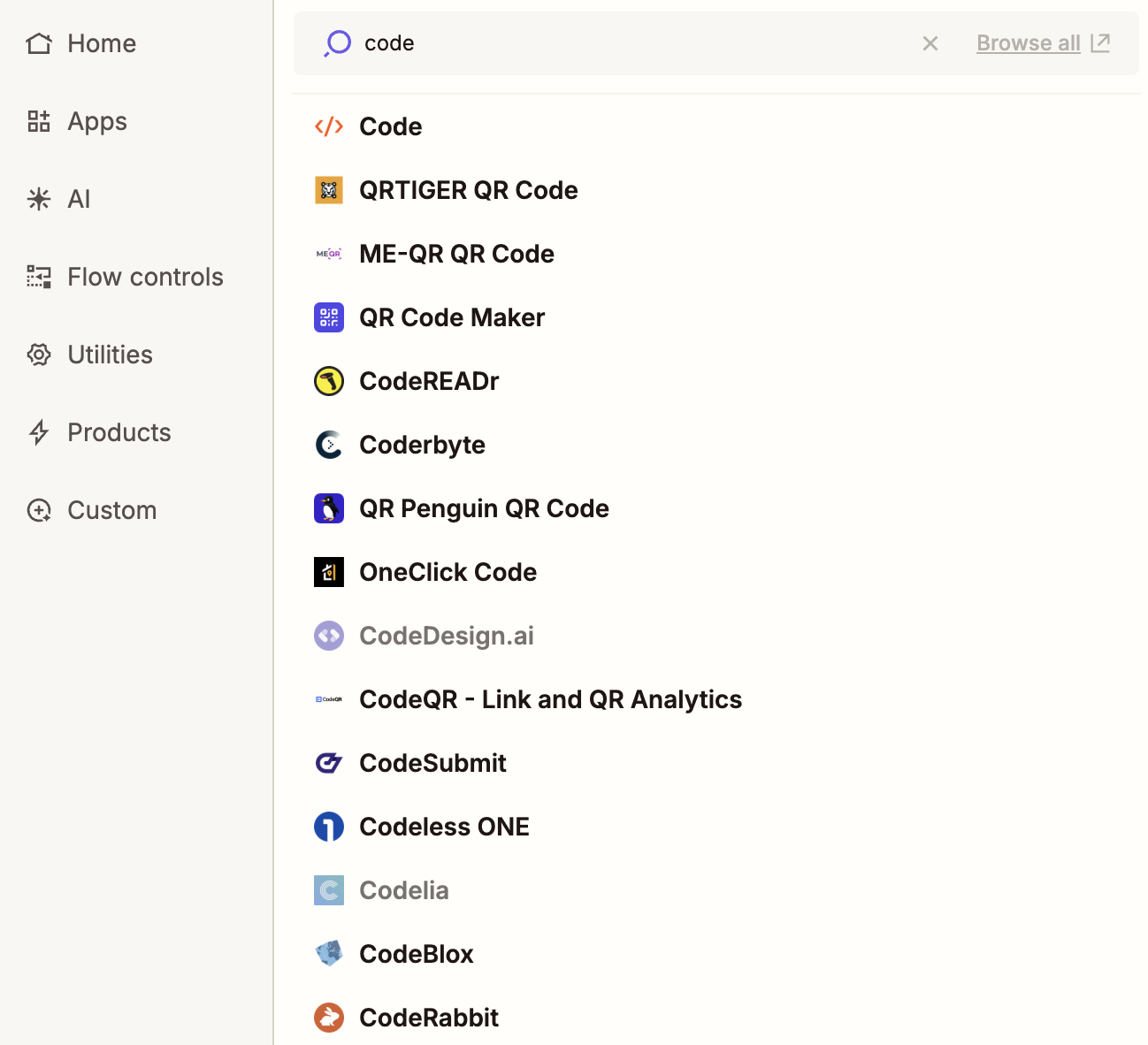
This uses any custom script of your choice, in Javascript or Python:
Important: You need to configure which values to pass through to the script, in the Input Data list. For the example script below, eight fields are required:
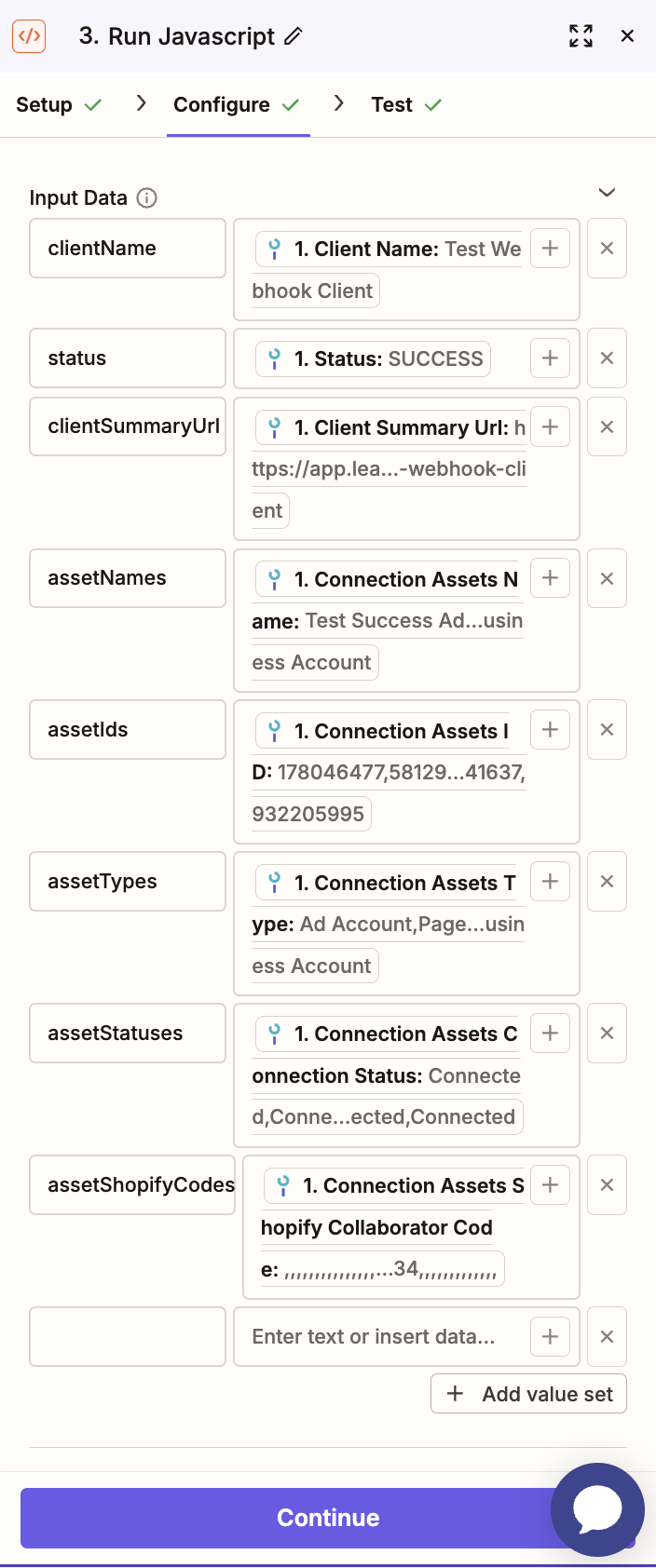
As an example, the following script creates the four connection/asset summary fields. However, it's provided as a reference example to help you create your own custom scripts (e.g. which you can feed into an AI tool/LLM like Claude or ChatGPT).
var splitCsv = (value) => {
if (value === void 0 || value === null || value === "") return [];
if (Array.isArray(value)) return value.map(String);
return String(value).split(",").map((s) => s.trim());
};
var parseZapierCsvToConnectionAssetsV2 = (inputData) => {
const columns = {
names: splitCsv(inputData.assetNames),
ids: splitCsv(inputData.assetIds),
platforms: splitCsv(inputData.assetPlatforms),
types: splitCsv(inputData.assetTypes),
statuses: splitCsv(inputData.assetStatuses),
shopifyCodes: splitCsv(inputData.assetShopifyCodes)
};
const length = Math.max(
columns.names.length,
columns.ids.length,
columns.platforms.length,
columns.types.length,
columns.statuses.length,
columns.shopifyCodes.length
);
return Array.from({ length }, (_, i) => ({
name: String(columns.names[i] ?? ""),
id: String(columns.ids[i] ?? ""),
platform: String(columns.platforms[i] ?? ""),
type: String(columns.types[i] ?? ""),
connectionStatus: String(columns.statuses[i] ?? ""),
shopifyCollaboratorCode: String(columns.shopifyCodes[i] ?? "")
}));
};
var isAssetGrantedNoDependencies = (connectionStatus) => {
return connectionStatus === "Connected" || connectionStatus === "In progress";
};
var escapeHtml = (text) => {
return String(text).replace(/&/g, "&").replace(/</g, "<").replace(/>/g, ">").replace(/"/g, """);
};
var displayText = (value, fallback) => {
if (value === void 0 || value === null) {
return fallback;
}
const trimmed = String(value).trim();
return trimmed || fallback;
};
var parseOverallStatus = (value) => {
switch (value) {
case "SUCCESS":
return "Successful";
case "PARTIAL_SUCCESS":
return "Partially successful";
case "FAILED":
return "Failed";
default:
return displayText(value, "");
}
};
var getLabelForAssetTypeWithPlatformNoDependencies = (type) => {
const assetType = String(type ?? "").trim() || "Asset";
switch (assetType) {
case "Google My Business Location":
return "Google Business Profile Location";
case "Ad Account":
case "Pixel":
return `Meta ${assetType}`;
case "Page":
case "Catalog":
case "Domain":
return `Facebook ${assetType}`;
default:
return assetType;
}
};
var getFailureStatusLabel = (asset) => {
const status = String(asset.connectionStatus || "").trim();
return status || "Not connected";
};
var getShopifyInProgressNote = (asset) => {
const code = String(asset.shopifyCollaboratorCode || "").trim();
const hasCode = code && code !== "none";
return hasCode ? `In Progress: request access with code ${code}` : "In Progress: request access (no code needed)";
};
var getAssetInfo = (asset) => {
const isGranted = isAssetGrantedNoDependencies(asset.connectionStatus);
let extraInfo;
if (!isGranted) {
extraInfo = getFailureStatusLabel(asset);
} else if (asset.platform === "Shopify") {
extraInfo = getShopifyInProgressNote(asset);
}
const name = String(asset.name || "").trim();
const id = String(asset.id || "").trim();
return {
icon: isGranted ? "\u2705" : "\u274C",
name,
id,
typeLabel: getLabelForAssetTypeWithPlatformNoDependencies(asset.type),
extraInfo
};
};
var formatAssetLine = (asset, escapeFunction) => {
const assetInfo = getAssetInfo(asset);
const { icon } = assetInfo;
let { name, id, typeLabel, extraInfo } = assetInfo;
if (escapeFunction) {
name = escapeFunction(name);
id = escapeFunction(id);
typeLabel = escapeFunction(typeLabel);
extraInfo = extraInfo ? escapeFunction(extraInfo) : void 0;
}
const idSuffix = id && id !== name ? ` #${id}` : "";
const inner = extraInfo ? `${typeLabel}${idSuffix} - ${extraInfo}` : `${typeLabel}${idSuffix}`;
const line = `${icon} ${name} (${inner})`;
return line;
};
var getAssetDetailsAsHtml = (connectionAssets) => {
return connectionAssets.map((asset) => `<li>${formatAssetLine(asset, escapeHtml)}</li>`).join("");
};
var getConnectionSummaryAsHtml = (connection) => {
const { clientName, status, clientSummaryUrl, connectionAssets } = connection;
const overallStatus = parseOverallStatus(status);
const assetDetailsAsHtml = getAssetDetailsAsHtml(connectionAssets);
return `
<p style="margin:0 0 12px"><strong>New Leadsie connection</strong></p>
<p style="margin:0 0 8px">Client: <strong>${escapeHtml(
displayText(clientName, "Client")
)}</strong></p>
<p style="margin:0 0 8px">Overall status: <strong>${escapeHtml(
overallStatus
)}</strong></p>
<p style="margin:0 0 16px"><a href="${escapeHtml(
displayText(clientSummaryUrl, "")
)}">View client in Leadsie</a></p>
<p style="margin:0 0 8px"><strong>Assets (${connectionAssets.length})</strong></p><ul style="margin:0;padding-left:20px">${assetDetailsAsHtml}</ul>`;
};
var getAssetDetailsAsText = (connectionAssets) => {
return connectionAssets.map((asset) => formatAssetLine(asset)).join("\n");
};
var getConnectionSummaryAsText = (connection) => {
const { clientName, status, clientSummaryUrl, connectionAssets } = connection;
const overallStatus = parseOverallStatus(status);
const assetDetailsAsText = getAssetDetailsAsText(connectionAssets);
return `New Leadsie connection
Client: ${displayText(clientName, "Client")}
Overall status: ${overallStatus}
View in Leadsie: ${displayText(clientSummaryUrl, "")}
Assets (${connectionAssets.length}):
${assetDetailsAsText}`;
};
var getConnectionSummaryFields = (connection) => {
const { connectionAssets } = connection;
return {
connectionSummaryHtml: getConnectionSummaryAsHtml(connection),
connectionSummaryText: getConnectionSummaryAsText(connection),
assetSummaryHtml: getAssetDetailsAsHtml(connectionAssets),
assetSummaryText: getAssetDetailsAsText(connectionAssets),
assetCount: connectionAssets.length
};
};
var convertZapierCsvToConnectionDetails = (inputData) => {
const { clientName, status, clientSummaryUrl } = inputData;
const connectionAssets = parseZapierCsvToConnectionAssetsV2(inputData);
const connection = {
clientName: displayText(clientName, "Client"),
status: displayText(status, ""),
clientSummaryUrl: displayText(clientSummaryUrl, ""),
connectionAssets
};
return getConnectionSummaryFields(connection);
};
globalThis.__runLeadsieZapierFormatter = (inputData) => {
const __summary = convertZapierCsvToConnectionDetails(inputData);
return {
connectionSummaryHtml: __summary.connectionSummaryHtml,
connectionSummaryText: __summary.connectionSummaryText,
assetSummaryHtml: __summary.assetSummaryHtml,
assetSummaryText: __summary.assetSummaryText,
assetCount: __summary.assetCount
};
};
})();
output = globalThis.__runLeadsieZapierFormatter(inputData);
Prefer to build directly against the Leadsie API?
Zapier covers most use cases, but if you need something beyond what's in the app, the Leadsie public API is available upon request (hi@leadsie.com). See the Leadsie API for details.
Still stuck? Email us at hi@leadsie.com.